Laptop Overheating & Loud Fan Noise
Most overheating laptops are not dying from age alone. They are usually choking on dust, dried thermal paste, or bad airflow that prevents heat from leaving the chassis.
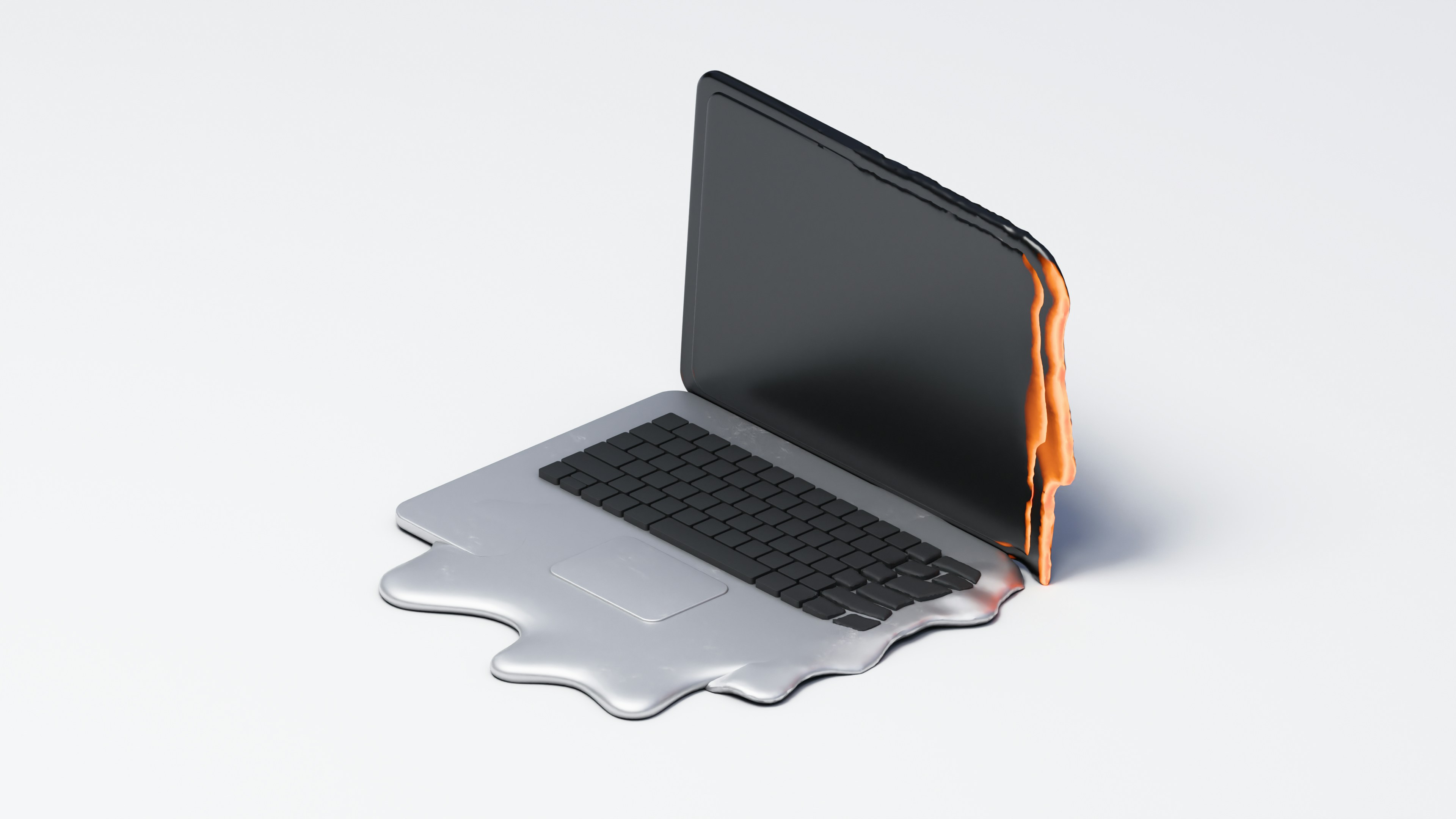
Quick diagnostic takeaway. Heat is generated at the silicon level, but the issue is almost always a thermal path problem. Dust blocks the heatsink fins, thermal paste ages into a poor conductor, and the fan may be forced to run at full speed because the heat never leaves the processor or GPU efficiently. Using the machine on a bed, blanket, or lap also traps warm air beneath the chassis and reduces the temperature differential the cooling system depends on. The visible symptom is a clue, not the component verdict.
01How It Happens
Heat is generated at the silicon level, but the issue is almost always a thermal path problem. Dust blocks the heatsink fins, thermal paste ages into a poor conductor, and the fan may be forced to run at full speed because the heat never leaves the processor or GPU efficiently. Using the machine on a bed, blanket, or lap also traps warm air beneath the chassis and reduces the temperature differential the cooling system depends on.
WarningDo not keep testing a machine that is already shutting down. Repeated thermal or power events can turn a recoverable fault into board damage.
02Symptoms to Watch For
Fan runs at max speed constantly even during light browsing. System suddenly throttles or freezes under normal tasks. Keyboard deck, vent, or underside becomes hot to the touch. Shutdowns happen after 10–20 minutes of gaming or video work.
- Fan runs at max speed constantly even during light browsing
- System suddenly throttles or freezes under normal tasks
- Keyboard deck, vent, or underside becomes hot to the touch
- Shutdowns happen after 10–20 minutes of gaming or video work
03Resolution: The Fix
Inspect the thermal path
We open the chassis and check fan spin, heatsink seating, and whether dust is packed in the fins or exhaust duct — not just a blast of air through the grille.
Clean the heatsink and ducts
Packed lint is removed from the fins so air can actually leave the CPU/GPU. A surface wipe does not restore airflow if the stack is clogged inside.
Reapply thermal paste
Aged paste is a poor conductor. Fresh paste (thermal paste service) restores the interface between the die and the heatsink so the fan no longer has to run at 100% to compensate.
Verify under load
After reassembly we confirm temperatures and fan curve under real work so the machine is stable, not just quiet on the bench.
Bench tipA proper diagnosis follows the signal path before replacing a part. That is how we avoid charger roulette and unnecessary motherboard swaps.
04How to Stop It Happening Again
Keep the laptop on a hard, flat surface instead of fabric. Schedule periodic cleaning if the machine is used heavily, and do not ignore rising fan noise or partial throttling. A cooling pad is useful, but it cannot compensate for a clogged heatsink or failed thermal paste.
Diagnostic noteKeep the symptom history, model number, and any recent event ready. Those three details shorten bench time considerably.
Was this guide helpful?
Continue the investigation